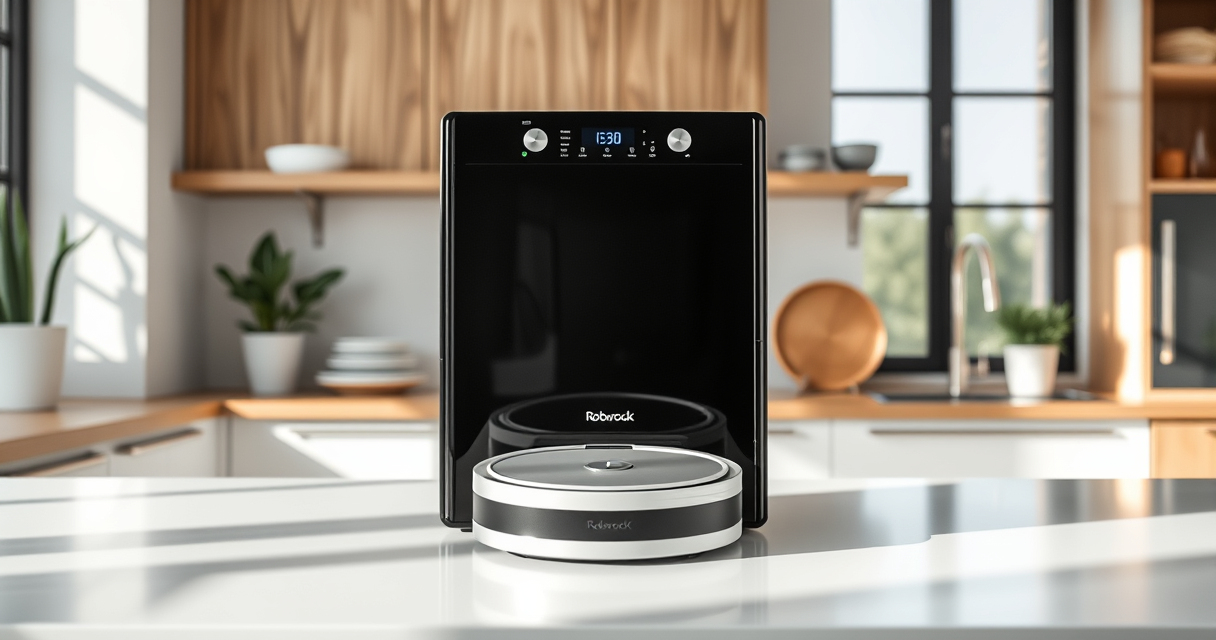
If your Roborock Q7 M5+ Robot Vacuum and Mop isn’t connecting to WiFi, it can be frustrating and hinder your cleaning schedule. WiFi connectivity issues are common but often solvable with simple steps. This guide will walk you through the most likely causes and effective fixes to get your robot back online quickly.
Before starting, ensure your WiFi network is functioning correctly and your phone’s app is updated. Having your WiFi password handy will also streamline the troubleshooting process.
Key Takeaways
| Check WiFi compatibility | Ensure your WiFi network is 2.4GHz, not 5GHz, as Roborock typically connects to 2.4GHz networks. |
| Restart devices | Reboot your robot, router, and smartphone to resolve temporary glitches. |
| Update firmware & app | Keep the Roborock app and robot firmware up-to-date for optimal connection. |
| Reset WiFi settings | Reset WiFi on the robot and reconnect manually if needed. |
| Check signal strength & interference | Ensure the robot is within range of your WiFi router and free from interference. |

roborock Q7 M5+ Robot Vacuum and Mop, Up to 7-9 Weeks Self-Empty, 10000Pa
- Long-Lasting Self-Emptying: Up to 9 weeks with 2.7L dust bag
- Powerful Suction: 10000Pa for deep cleaning
- Tangle-Resistant Brushes: Dual anti-tangle design for pet hair
As an affiliate, we earn on qualifying purchases.
1. Verify Your WiFi Network
- Confirm your router is broadcasting a 2.4GHz network, as Roborock devices typically do not support 5GHz bands.
- Check that your network password is correct.
- Ensure there are no connectivity issues with your internet service.
2. Restart Your Devices
- Power off your Roborock robot and unplug your WiFi router for about 30 seconds.
- Turn on the router first, wait until it stabilizes, then power on the robot.
- Restart your smartphone or tablet as well.
3. Reset and Reconnect WiFi on the Robot
- Open the Roborock app, go to device settings, and select ‘WiFi Reset’ or similar option.
- Follow the prompts to put your robot into pairing mode.
- Connect manually by selecting your WiFi network and entering the password.
4. Update Firmware and App
- Open the Roborock app and check for firmware updates for your robot.
- Update the app to the latest version from your app store.
- Follow instructions to complete updates, then try reconnecting.
5. Check for Interference and Signal Strength
- Move your robot closer to the router during setup to improve signal strength.
- Reduce interference from other devices like cordless phones or microwave ovens.
- Ensure your WiFi signal is strong in the area where you use the robot.
The Products in This Guide

roborock Q7 M5+ Robot Vacuum and Mop
- ✔ Self-Emptying: Yes
- ✔ Pet Hair Handling: Yes
- ✔ App Compatibility: iOS and Android

4 Pack Washable Filter
- ✔ Material: HEPA
- ✔ Washable: Yes
- ✔ Compatibility: Q7, Q7+, Q7 Max, more
roborock Q7 M5+ Robot Vacuum and Mop
The Roborock Q7 M5+ offers a seamless smart home experience with app control and Precise LiDAR navigation. Connectivity is crucial, and following these troubleshooting steps can help maintain a stable WiFi link.
Pros:
- Up to 7-9 weeks self-empty cycle
- 10000Pa suction power
- Dual anti-tangle system
- App control for remote operation
Cons:
- Requires 2.4GHz WiFi network
- Potential connectivity issues if interference occurs
- Firmware updates sometimes needed for stability
Best for: Homeowners seeking a powerful, self-emptying robot with reliable WiFi connectivity.
Not ideal for: Users with inconsistent WiFi signals or complex network setups.
Bottom line: Ensure your network setup aligns with Roborock’s connectivity requirements for smooth operation.
4 Pack Washable Filter
Replacing your filters regularly can improve your robot’s performance and air quality, especially if WiFi issues are linked to power or sensor errors.
Pros:
- Easy to install
- True HEPA filtration
- Compatible with multiple models
- Long-lasting filters
Cons:
- Not OEM, but effective
- Requires replacement every few months
- May need extra cleaning
Best for: Maintaining peak performance and air hygiene.
Not ideal for: Those seeking OEM-certified filters.
Bottom line: Using high-quality washable filters can help maintain your Roborock’s connectivity and cleaning efficiency.
Frequently Asked Questions
Why won’t my Roborock connect to WiFi?
Common causes include incorrect network settings, weak signals, interference, outdated app or firmware, or issues with your router. Following the troubleshooting steps can resolve most problems.
Can I connect Roborock to a 5GHz WiFi network?
Roborock generally requires a 2.4GHz WiFi connection. Ensure your router broadcasts a 2.4GHz band and connect to that during setup.
What should I do if resetting WiFi doesn’t help?
Try updating the robot firmware and app, move the robot closer to the router, or perform a factory reset on the robot and set up WiFi anew.
Is it safe to reset WiFi settings myself?
Yes, resetting WiFi settings on your Roborock is safe and straightforward. Just follow the app prompts carefully and ensure your network details are correct.
Seamless Connectivity for a Smarter Home
By following these troubleshooting tips, you can restore your Roborock’s WiFi connection and enjoy effortless cleaning. Maintaining proper network setup and keeping firmware updated are key to a trouble-free experience. With a little patience, your robot will be back online and working efficiently, keeping your home spotless.
Affiliate disclosure: As an Amazon Associate we earn from qualifying purchases. Prices and availability are accurate as of the time of publishing.