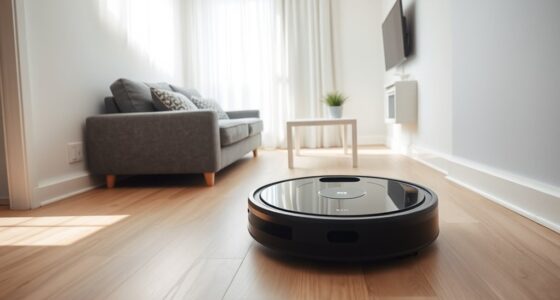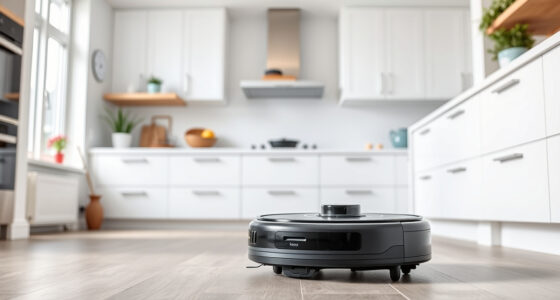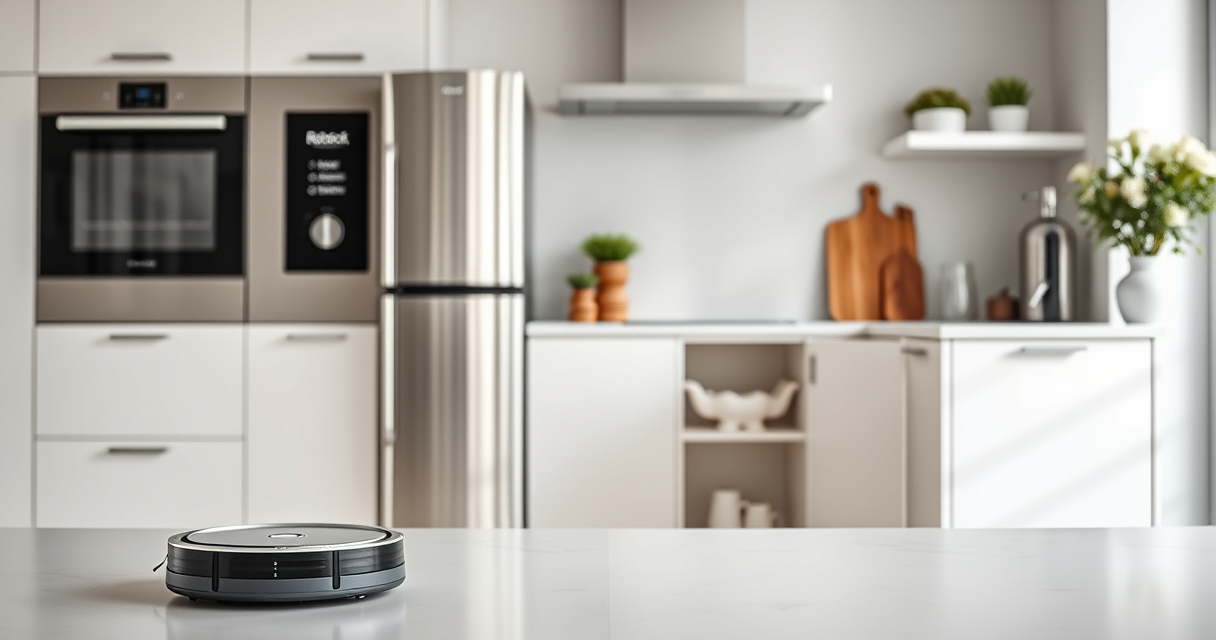
If your Roborock Q7 M5+ robot vacuum isn’t connecting to WiFi, it can disrupt your cleaning routine and prevent app control. This guide provides practical, safe steps to diagnose and fix common connectivity issues, ensuring your robot is back online quickly.

Get home appliances delivered free with Prime
- Fast, free delivery on millions of items
- Prime Video, Amazon Music and more included
- Member-only deals all year
Before starting, make sure your WiFi network is working properly and your smartphone has the latest app version installed. Follow these clear steps to troubleshoot and resolve WiFi connection problems efficiently.
Key Takeaways
| Check WiFi Compatibility | Ensure your network supports 2.4GHz bands, as Roborock devices typically do not connect over 5GHz. |
| Reset and Reconnect | Reboot your robot and router, then reconfigure the WiFi setup through the app. |
| Update Firmware & App | Keep the robot firmware and app updated for optimal connectivity. |
| Improve Signal Strength | Place the robot and router closer or remove obstacles to strengthen WiFi signals. |
Verify WiFi Network Compatibility
- Ensure your WiFi network is operating on 2.4GHz, as Roborock models typically do not support 5GHz networks.
- Check your router settings to confirm the band and SSID are visible and enabled.
Restart Your Devices
- Power off your Roborock vacuum by pressing and holding the power button until it shuts down.
- Unplug your WiFi router, wait 30 seconds, then plug it back in and wait for it to fully restart.
- Turn your robot back on and try reconnecting via the app.
Reconfigure WiFi Connection
- Open the Roborock app and navigate to the device settings.
- Select WiFi setup and follow prompts to reconnect your robot to the network.
- Ensure your phone is connected to the same WiFi network during setup.
Update Firmware and App
- Check for firmware updates in the app under device settings and install any available updates.
- Ensure your app is the latest version from your app store for improved stability.
Optimize WiFi Signal
- Place your router closer to the robot’s usual cleaning area, avoiding thick walls or metal objects.
- Reduce interference by turning off other devices operating on the same frequency.
The Products in This Guide

roborock Q7 M5+ Robot Vacuum and Mop
- ✔ Model: B0DWX69JVG
- ✔ Battery Life: Up to 9 weeks
- ✔ App Control: Yes

4 Pack Washable Filter
- ✔ Pack: 4 filters
- ✔ Material: HEPA
- ✔ Compatibility: Multiple Roborock models
roborock Q7 M5+ Robot Vacuum and Mop
<p>The Roborock Q7 M5+ Robot Vacuum and Mop offers up to 7-9 weeks of hands-free cleaning thanks to its large 2.7L sealed dust bag and self-emptying dock. Its 10000Pa suction power efficiently handles pet hair, dirt, and debris, making it a top choice for busy households. PreciSense LiDAR Navigation ensures thorough coverage, while app control allows easy scheduling and adjustments.</p>
Pros:
- Long-lasting self-emptying dock
- Strong 10000Pa suction
- Excellent navigation with LiDAR
- Pet hair and carpet friendly
Cons:
- Price may be higher for some budgets
- Requires WiFi for full functionality
Best for: Pet owners and busy households needing low-maintenance cleaning
Not ideal for: Users without stable WiFi or those preferring manual cleaning
Bottom line: A high-performance robot vacuum ideal for pet hair and long-term use.
4 Pack Washable Filter
<p>This washable HEPA filter replacement ensures your Roborock stays in peak condition, maintaining excellent filtration and suction performance. Easy to install and reuse, it’s a cost-effective choice for ongoing maintenance.</p>
Pros:
- Effective filtration
- Washable and reusable
- Compatible with multiple models
- Easy to install
Cons:
- Requires regular cleaning
- Not OEM, but performs well
Best for: Maintaining air quality and suction efficiency
Not ideal for: If you prefer OEM parts or minimal maintenance
Bottom line: A dependable washable filter to keep your vacuum performing at its best.
Frequently Asked Questions
Why won’t my Roborock connect to WiFi?
Common reasons include incompatible network bands, weak WiFi signals, outdated app or firmware, or incorrect WiFi setup. Follow troubleshooting steps to resolve these issues.
Can I connect Roborock to a 5GHz WiFi network?
Most Roborock models, including the Q7 M5+, connect only to 2.4GHz networks. Ensure your router broadcasts separate bands and connect to the 2.4GHz band.
What should I do if resetting doesn’t fix WiFi issues?
Try updating the robot firmware and app, repositioning your router, or resetting your network settings. If problems persist, contact customer support.
Is it safe to reset my Roborock’s WiFi?
Yes, resetting WiFi is safe and often necessary for troubleshooting. Just follow the app instructions carefully to reconfigure your connection.
Getting Your Roborock Back Online
WiFi connectivity issues with your Roborock Q7 M5+ can be frustrating, but most problems are easily fixed with simple troubleshooting steps. By verifying your network, restarting devices, updating software, and optimizing signal strength, you can restore seamless app control and enjoy a cleaner home. If all else fails, replacing filters or contacting support may be necessary to keep your robot performing at its best.
Affiliate disclosure: As an Amazon Associate we earn from qualifying purchases. Prices and availability are accurate as of the time of publishing.
Fall yard work Picks
leaf blowers
As an affiliate, we earn on qualifying purchases.