TL;DR

Get home appliances delivered free — and shop member deals
- Fast, free delivery on millions of items
- Access to Prime Big Deal Days deals on October 6–7
- Prime Video, Amazon Music and more included
Smart home security cameras can detect events, send alerts, and save video, but their usefulness depends on placement, reliable power and Wi-Fi, and a storage plan you understand. Before buying, decide what area you need to cover, whether you prefer cloud or local recording, and what privacy and ongoing costs you can accept.
A camera that records every passing headlight but misses your front step is not much of a security upgrade. Placement, reliable alerts, and accessible footage often matter more than a flashy resolution number.
Smart home security cameras have evolved from simple recording devices into connected systems that can detect motion, describe events, and link with doorbells, displays, or alarms. That can make your home easier to check while you’re away, but it also brings questions about subscriptions, outages, and who can view the footage.
This guide helps you choose based on the area you need to cover, how you’ll store video, and the privacy and running costs you can live with. You’ll also learn what camera features can—and cannot—promise, with practical examples to help you avoid an expensive blind spot.
Choose a camera for the specific area and viewing distance, not the resolution number alone.
Test Wi-Fi and night vision at the planned location before relying on alerts.
Compare cloud convenience with local control, storage limits, and recurring fees.
Treat person, package, and face detections as fallible alerts, not certain identification.
Use a unique password, multifactor authentication, software updates, and careful sharing controls.
Start by choosing the spot you need to see clearly
Smart home security cameras work best when they capture a useful view of a specific place, such as a doorway, hallway, or side gate. Begin with the question, “What do I need to see?” rather than “Which camera has the most features?” A camera above your porch may show a delivery clearly, while one pointed down from the roofline sees mostly the top of someone’s hat.
Think about distance, lighting, and what might move through the frame. A narrow view can show a face at the door; a wider view can cover the driveway but make a person appear smaller. Resolution is only one part of image quality: the lens, field of view, night lighting, and distance all shape the final image. Digital zoom enlarges what the camera recorded; it cannot create detail that was never captured. This is why matching the camera’s view to the task matters: monitoring whether someone entered a gate needs broad coverage, while checking who is at the door calls for a closer, more carefully framed image. The tradeoff is that one camera rarely gives both a wide overview and close detail across a large area. Decide which view would be most useful after an incident, then place the camera to support that purpose. If you need both, separate cameras may be more effective than compromising on a single angle, though they add equipment and ongoing management.
For example, suppose your front path is 20 feet long and a streetlamp shines into the lens at night. Test the view after dark, not only on a sunny afternoon. Adjust the angle to reduce glare, and check whether a visitor’s face remains visible when they stand where a package usually lands. If that spot is too far away to show useful detail, moving the camera closer or adding a second camera may help more than buying a higher-resolution model. Each extra camera, however, adds setup work, power and network demand, and another device whose footage and access you need to manage. A second camera can also create overlapping footage, which may make it easier to follow movement but can require more storage and more time to review.
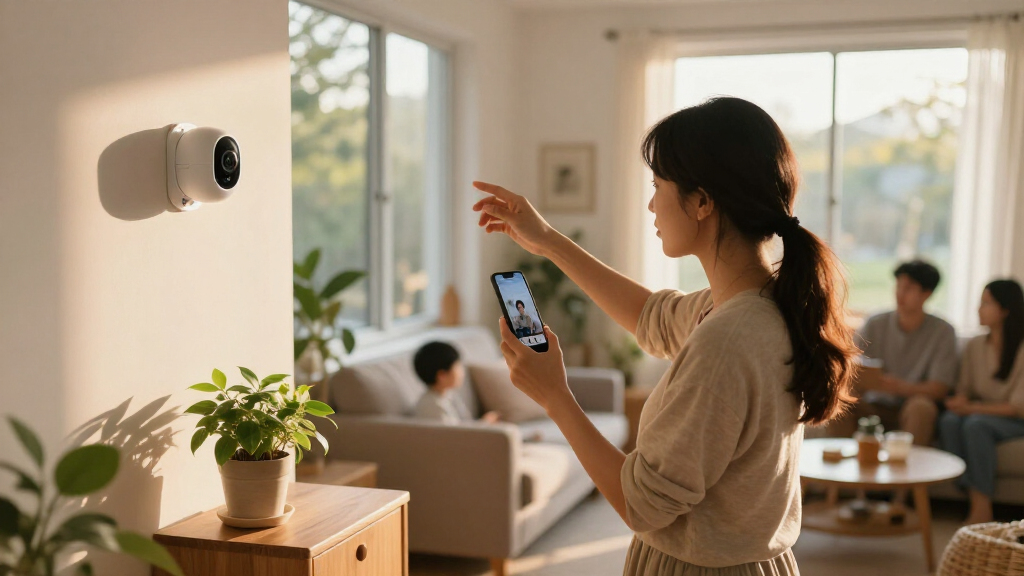
Indoor cameras can help you check a pet or monitor an entryway, while outdoor cameras need weather protection suited to their location. Avoid aiming into a neighbor’s windows or private yard. Coverage should protect your space without intruding on someone else’s. A short test from a phone screen can reveal a blocked corner, a bright reflection, or a window that the camera should not record. Framing the view deliberately also limits how much unrelated activity is captured, which can make both privacy and reviewing footage easier. That narrower view is a practical compromise: it may omit activity beyond the area you care about, but it also reduces unwanted recording and makes alerts and clips more relevant.
wireless home security camera with night vision
As an affiliate, we earn on qualifying purchases.
As an affiliate, we earn on qualifying purchases.
Match the power source to how you use the camera
Choose wired power for steady recording and battery power for flexible placement. Wired cameras can avoid frequent charging and may suit a fixed entrance or garage. Battery models are easier to install where no outlet sits nearby, but many save power by recording event clips instead of continuously. That distinction matters if you need a complete timeline: event recording can miss the start of an incident or activity that does not trigger detection. A solar panel can reduce charging, though it needs suitable sunlight and a compatible setup. The decision is about the recording you need as much as installation convenience: a camera that is easy to mount but often sleeps between events may not provide the history you expect.
Picture a rental where you want to watch the front door without drilling through walls. A battery camera may be the practical option. At a busy driveway, where you want frequent clips or longer recording, a wired model may fit better. Compare more than the device price: include replacement batteries, any solar accessory, a memory card or hub, and a possible subscription. The cheaper option up front can cost more over time if it needs frequent charging or paid features, while a wired installation may involve extra work and fewer choices about where the camera can go. Frequent charging also creates a practical gap: if the battery runs low and you do not notice, the camera may stop recording precisely when you expect it to work. Conversely, a wired camera is only dependable if its outlet or circuit remains powered and the installation is safe.
Power and internet solve different problems. A battery or wired connection keeps the camera running; Wi-Fi usually enables alerts, remote viewing, and cloud uploads. If your router barely reaches the back porch, a strong signal problem can make even a good camera unreliable. Test Wi-Fi at the planned mounting spot before you install the device. A weak connection may mean delayed alerts or missing cloud clips, so a camera that seems fine during setup near the router can fail at the location where you actually need it. This means an otherwise suitable camera may require a mesh node or a different mounting position, adding cost or changing the coverage you planned. Check the connection at the time and in the conditions you expect to use it, not just during a quick setup.
During an internet outage, some cameras can keep saving video to local storage if they remain powered, although remote viewing may stop. A power cut is different: a camera without backup power cannot record while switched off. Check what continues working during each kind of outage instead of assuming that “smart” means always connected. If you need recording through outages, look for a system that supports local storage and consider backup power; that can improve resilience but adds cost and another component to maintain. Local recording preserves a chance to retrieve footage later, but it may not help you respond in real time if alerts and remote access are down. For roof, electrical, or other hazardous installation work, use a licensed professional and follow relevant safety requirements.
smart doorbell camera with cloud storage
As an affiliate, we earn on qualifying purchases.
As an affiliate, we earn on qualifying purchases.
Choose between cloud video and local storage
Cloud storage gives you access to saved clips away from home, while local storage keeps recordings on a card or home hub. Cloud plans can be convenient if you want footage backed up after a camera is damaged or stolen. Local recording can reduce recurring costs and give you more direct control, but the storage device itself may be at risk if it stays beside the camera. The choice is therefore about more than where files sit: it affects whether you can retrieve footage during an outage, how much you pay over time, and how much you depend on the camera maker’s service. Cloud copies offer separation from the camera, but depend on a working internet connection, an active account, and the provider’s service. Local storage avoids some of that dependence, yet a stolen or damaged camera or hub can take the footage with it.
Consider a weekend away: if a delivery goes missing, cloud history may let you pull up the clip from your phone. A camera that stores only to a card could still record during an internet outage, but you may need to return home to review it. Neither option is automatically better; the right fit depends on remote access, backup, privacy, and cost. Some systems combine both approaches, giving you local recording with off-site copies, but that convenience may require a subscription and a reliable connection. A hybrid arrangement can reduce the risk of losing every copy, but it also gives you more settings and costs to understand; confirm which copy is available if internet service or the subscription stops.
Before buying, check whether recording is continuous or triggered by events, how long clips remain available, and what happens when a plan ends. “No monthly fee” does not always mean every feature is free. A camera may provide live viewing without charge while charging for cloud history, advanced event descriptions, or longer retention. Storage needs also vary with resolution, recording length, and how often motion triggers the device. More detailed or frequent recording can fill local storage faster, while cloud plans may impose limits on the number of cameras or the length of saved history. These limits determine whether you can find an older clip when you need it, so compare the actual retention period with how quickly you expect to notice a problem. If recordings overwrite automatically, a delay in noticing an incident can mean the relevant clip is gone. Longer retention helps with late discovery but usually requires more capacity or a higher-priced plan.
Use this quick comparison as a starting point, then confirm the exact terms for the model you want. Product features and prices change, so check the manufacturer’s current plan details rather than relying on an old review. Also ask what happens to saved footage if your internet service, account, or subscription ends; an inexpensive plan is less useful if you cannot access the recordings when needed. Think through the most likely failure you want to guard against—camera theft, internet loss, or a missed alert—and prioritize the storage option that addresses it.
| Choice | What it offers | What to check |
|---|---|---|
| Cloud | Remote access and off-site backup | Monthly fees, retention, and plan limits |
| Local card or hub | On-site recording and fewer recurring costs | Storage capacity, device security, and outage access |
| Battery power | Flexible placement without a nearby outlet | Charging frequency and continuous-recording support |
| Wired power | Steady power for a fixed position | Safe installation and power-outage backup |
battery-powered outdoor security camera
As an affiliate, we earn on qualifying purchases.
As an affiliate, we earn on qualifying purchases.
Make alerts useful instead of noisy
Smart detection features can cut down on irrelevant alerts, but they do not identify every event correctly. Motion zones let you ignore a busy sidewalk; person or package detection may separate a visitor from a swaying branch. Some newer cameras describe events or sort activity into people, animals, or vehicles. Their performance depends on placement, lighting, software, and sometimes an internet connection or paid plan. These tools can save time, but they are still filters: an event they miss will not produce the alert you expect, and an incorrect label can lead you to dismiss something worth checking. Consider the consequence of each setting: increasing sensitivity may catch more subtle activity but can flood you with false alarms, while reducing it may make alerts manageable at the cost of missing less obvious movement.
Imagine your phone buzzing every time headlights sweep across the living-room wall. That alert teaches you to ignore the camera. Narrowing the motion zone or changing the angle may help more than switching on every AI feature. Start with the area you actually care about, then adjust sensitivity after watching alerts for a few days. The goal is not the largest number of notifications; it is a small set of alerts that reliably directs your attention to meaningful activity. If you get too many, you may start dismissing them without checking; if you get too few, you may assume the system is watching more reliably than it is. Review actual clips as you tune settings so the quieter notification stream still covers the events that matter.
AI labels are clues, not proof. A “person” alert can be wrong, and a face-recognition feature should not be treated as certain identification. On-device processing can handle some detection locally, which can reduce reliance on cloud analysis; it does not automatically mean no information ever leaves your home. Read the feature and privacy details for the specific device. If you use detection to make decisions about safety, treat the alert as a prompt to check the video rather than as confirmation of who was there or what happened. This distinction matters because a label is generated from the camera’s view and software, not independent verification; shadows, distance, and partial obstruction can all affect what the system infers.
A practical setup might send immediate alerts for a person at the front door but stay quiet when a car passes at the edge of the driveway. Test it at different times of day, including after dark and during windy weather. Reliable, relevant alerts beat a long list of clever labels. If a feature needs a subscription, decide whether the convenience is worth the ongoing charge before you buy. Revisit the settings if seasons, lighting, or nearby activity change; a zone tuned for a quiet summer afternoon may create a flood of alerts when leaves begin moving in autumn. Periodic checks also reveal whether a software change or a shifted camera angle has altered what gets detected, so don’t assume a setting that once worked will always behave the same way.
Wi-Fi security camera with motion detection
As an affiliate, we earn on qualifying purchases.
As an affiliate, we earn on qualifying purchases.
Protect your footage with a few simple security habits
Secure a camera account with a unique password, multifactor authentication, and regular updates. A connected camera can hold intimate video, so treat its account like access to your home rather than another throwaway app. Use a password that you do not reuse elsewhere, turn on a second sign-in step when available, and install firmware and app updates. A reused password creates a path from a breach on another service to your camera account; multifactor authentication makes that path harder to use, while updates can address security weaknesses the manufacturer has fixed. Together, these habits lower the chance that someone can use stolen credentials or a known software flaw, though they cannot remove every risk.
For example, if a household member no longer needs camera access, remove their account instead of leaving an old shared login active. Review who can view or share clips, how long recordings remain stored, and how to delete them. Control over access and retention is part of security, not an afterthought. Fewer people with access also means fewer accounts to secure and less risk that footage will be copied or shared unintentionally. Use individual accounts where possible so you can revoke one person’s access without changing a shared password for everyone else.
Check what the manufacturer says about encryption, account recovery, and data retention. These claims help you compare products, but they are not a guarantee that no problem can occur. Consider whether a camera offers a physical shutter, an electronic privacy mode, or a way to switch off audio. Those features can be useful in a bedroom or a shared home. A physical shutter provides a visible barrier when closed; an app-based mode may be easier to use remotely but relies on software and correct settings. Decide which kind of control fits the room and the people who use it. A microphone also collects a different kind of sensitive information than video, so disabling audio when it is not needed can reduce what is recorded and the legal or household concerns that come with it.
Local recording is not a magic shield, and cloud storage is not automatically unsafe; each option has different trade-offs. A local card may be lost with the camera, while remote access brings account and service dependence. Think through who can see the footage and what you want recorded before mounting a camera. For renters or shared households, check lease rules, discuss placement, and respect local privacy and audio-recording laws. Limiting the view to the area you need can reduce the amount of sensitive footage collected in the first place, making storage and access decisions simpler. The less unnecessary footage you collect, the less you need to protect, review, and eventually delete.
Use this five-step setup to catch problems before they matter
A careful setup test can expose blind spots, weak Wi-Fi, and noisy alerts before you rely on a camera. You do not need a complicated security plan to get started; you need a clear view, a working connection, and a storage method you understand. Spend a few minutes testing each camera in the conditions where you expect it to work. Each check addresses a different failure point: a camera can show a good live picture yet fail to save clips, or record reliably while sending alerts too late to be useful. Testing end to end matters because the setup is only useful when the camera captures the event, saves it, and lets you access it in time.
- Pick the target: Name the place you need to see, such as the front step or garage door. This keeps the camera’s purpose specific and helps you judge whether the view is useful.
- Check the view: Stand where a visitor would and see whether the image captures useful detail without crossing into private areas. If important details are too small, reconsider the angle or camera position before relying on digital zoom.
- Test the connection: Check live video and alerts from the actual mounting spot, not beside the router. A weak signal can create delays or prevent uploads, so a successful test near the router does not prove the chosen location will work.
- Confirm recording: Trigger a test clip and verify where it saves, how long it stays, and whether your plan charges for access. A visible live stream is not evidence that a clip is being stored or will remain available.
- Review alerts and access: Adjust motion zones, secure the account, and remove sharing permissions you do not need. This reduces nuisance notifications and limits who can see the footage.
Say you install a camera above the garage, then find that the router’s signal drops when the door closes. A quick test can prompt you to reposition the camera or improve coverage before a missed upload becomes a problem. Test in daylight and after dark; a clear afternoon view does not promise a useful night image. Test with the garage door open and closed, too, if its position changes the camera’s view or signal. Repeating the test after making a change confirms that the fix solved the problem without creating a new blind spot.
Revisit the setup after moving furniture, changing the router, or trimming trees. A branch that barely moved in spring may fill the frame on a windy autumn night. A camera is a deterrent and a source of possible evidence, not a guarantee that an incident will be prevented. Keep expectations grounded and use it as one part of a wider home-safety plan. Checking the camera periodically matters because a shifted view, exhausted battery, full card, or expired plan can quietly make a setup less useful over time. A brief monthly check of the live view, saved clips, and account status can catch these changes before you need footage that is no longer being recorded.
Frequently Asked Questions
Do smart home security cameras need Wi-Fi?
Most need Wi-Fi for remote viewing, alerts, and cloud uploads. Some can keep recording locally during an internet outage if the camera and storage still have power, but remote access may stop. Check the model’s outage behavior before you buy.
Do I need to pay a monthly subscription?
Not always. Some cameras offer local recording and basic alerts without a monthly plan, while cloud history or advanced detection may cost extra. Check what features remain available if you cancel.
Can a camera record without internet or power?
Local recording may continue without internet if the camera remains powered and its storage works. A camera without power cannot record unless a suitable backup battery keeps it running. Remote viewing and cloud uploads may still be unavailable during an outage.
What matters more: resolution or field of view?
Neither matters on its own. Field of view determines how much area appears in the image, while resolution helps preserve detail; lighting, lens quality, and distance also shape what you can recognize. Choose a view that covers the target and keeps important details visible.
Are smart security cameras safe from hackers?
No connected camera is risk-free, but good account habits reduce exposure. Use a unique password, enable multifactor authentication where available, install updates, and review who can access or share footage. Check the camera’s privacy and retention settings, too.
Can I use a camera in a rental or shared home?
Check your lease, household expectations, and local privacy rules before installing one. Indoor cameras may record housemates or visitors, so discuss placement and access openly. Avoid private spaces and review any rules about audio recording.
Conclusion
Buy the camera that gives you a dependable view, a storage plan you understand, and privacy controls you’ll actually use. Test its signal, alerts, and night image before you count on it. A camera should bring a little more confidence to your home—not a constant chorus of false alarms.
When the picture is clear, the account is secure, and the camera watches only what it should, your security setup feels less like a blinking gadget and more like a useful light left on at the door.
Fall Picks
fall essentials
As an affiliate, we earn on qualifying purchases.